Review & Send
Review your AI-generated draft, make any edits, and send your application to the kindergarten with confidence.
Reviewing Your Draft
After AI generation, your application moves to "Generated" status. Review the draft before sending:
Find Generated Applications
In your Applications list, look for applications with "Generated" status.
Click "View Draft"
Click the "View Draft" button to open the email preview in a modal dialog.
Read and Edit
Read through the generated email carefully. You can edit the text directly in the editor before saving or sending.
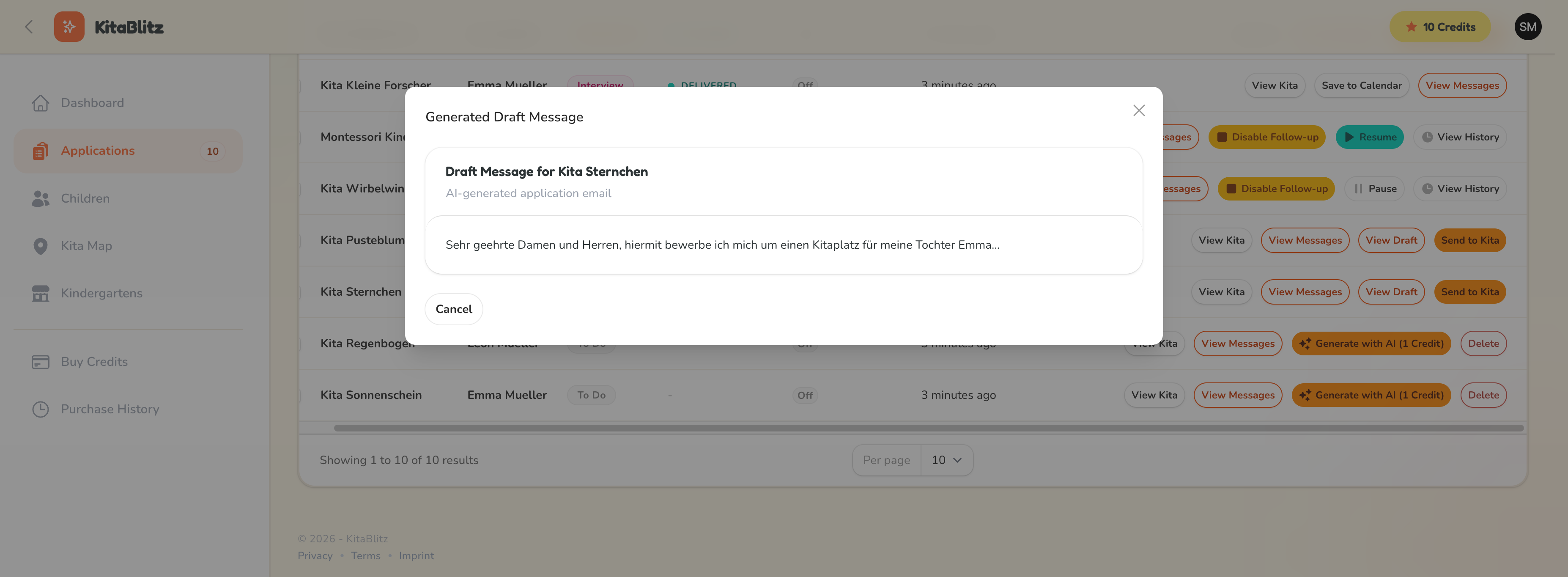
Reviewing an AI-generated draft email
You Can Edit Before Sending
The AI generates a great starting point, but you are always in control. Feel free to personalize the email further, add specific details, or adjust the tone before sending.
Sending Your Application
Once you are happy with the draft, send it to the kindergarten:
Click "Send to Kita"
Click the "Send to Kita" button on the application row or within the draft preview.
Confirm Sending
Review the confirmation dialog and click "Yes, Send" to dispatch the email. The application status changes to "Sent".
Cannot Unsend
Once an email is sent, it cannot be recalled or unsent. Make sure you have reviewed the content carefully before confirming.
After Sending
After sending, your application status progresses through the delivery pipeline: Queued, Sent, Delivered, and potentially Opened. You can track this in the delivery timeline. When the kindergarten replies, the status is automatically updated based on AI analysis of their response.
Sending Rate Limit
To ensure reliable delivery, there is a limit of 5 emails per minute per user. If you are sending many applications, they will be queued and sent gradually.