Reply Processing
When a kindergarten replies to your application, KitaBlitz automatically detects the response, analyzes it with AI, and updates your application status.
How It Works
KitaBlitz monitors incoming emails and processes replies automatically. Here is the flow:
Kita Replies
The kindergarten sends a reply to your application email. The reply is forwarded to KitaBlitz automatically.
AI Analyzes the Reply
Our AI reads the reply text and determines the outcome — whether it is a rejection, waiting list placement, interview invitation, or acceptance.
Status Updated
Your application status is automatically updated based on the AI analysis. No manual action needed.
You Get Notified
You receive an email notification with the AI summary of the reply and the new application status.
Auto-Detected Statuses
The AI can detect and classify replies into these categories:
Waiting List
The Kita has no spots available right now but has placed your child on their waiting list. You will be contacted when a spot opens up.
Rejected
The Kita cannot offer a spot. This may be due to capacity, age requirements, or other criteria. You can enable follow-up emails to try again later.
Interview
Great news! The Kita has invited you for a get-to-know meeting (Kennenlerngespräch). Check the reply for date and time details.
Accepted
Congratulations! The Kita has offered your child a spot. Follow the instructions in the reply to confirm your place.
Email Notifications
Every time a Kita replies, you receive an email notification with an AI-generated summary of the reply and the detected status. This helps you stay informed without checking the dashboard constantly.
Viewing Replies
To view the full reply and conversation history, open an application and check the Messages tab. All inbound and outbound emails are listed chronologically.
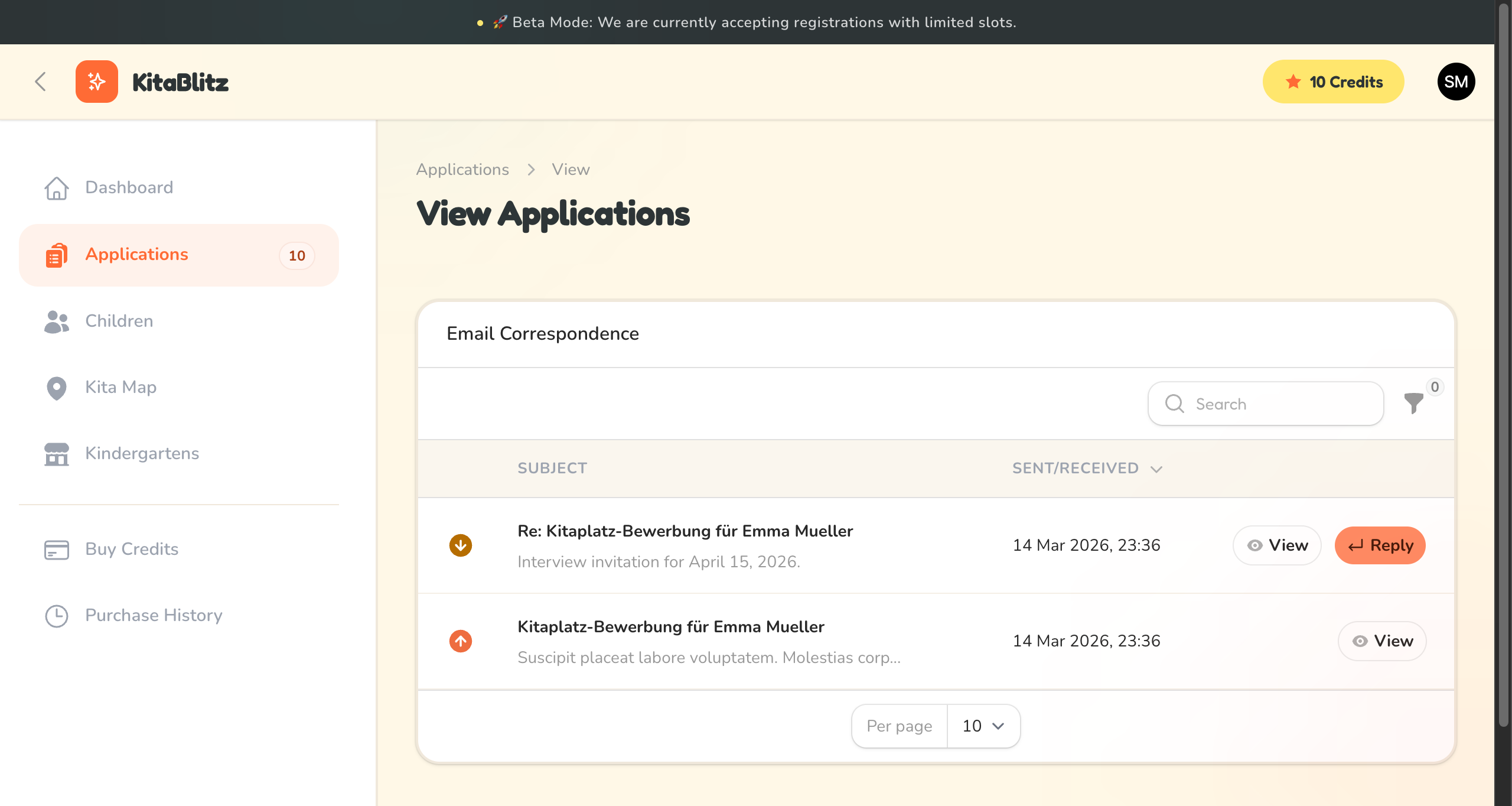
Email conversation history with a kindergarten
Follow-Up Campaigns
If you have not received a response, or were placed on a waiting list, you can enable automatic follow-up emails:
Enable Follow-Up
Click "Enable Follow-up" on an application to start an automatic follow-up campaign. Each follow-up costs 1 credit.
Automatic Scheduling
Follow-up emails are sent every 30 days, up to a maximum of 6 emails over 6 months. You can pause or cancel at any time.
Draft Review
Each follow-up email is drafted for your review before sending. You can approve, edit, or cancel the draft.
AI Detection Is Not Perfect
While our AI is highly accurate, it may occasionally misclassify a reply. Always read the original reply text to confirm the detected status, especially for important decisions like interview dates.